How to make a call to a Contact
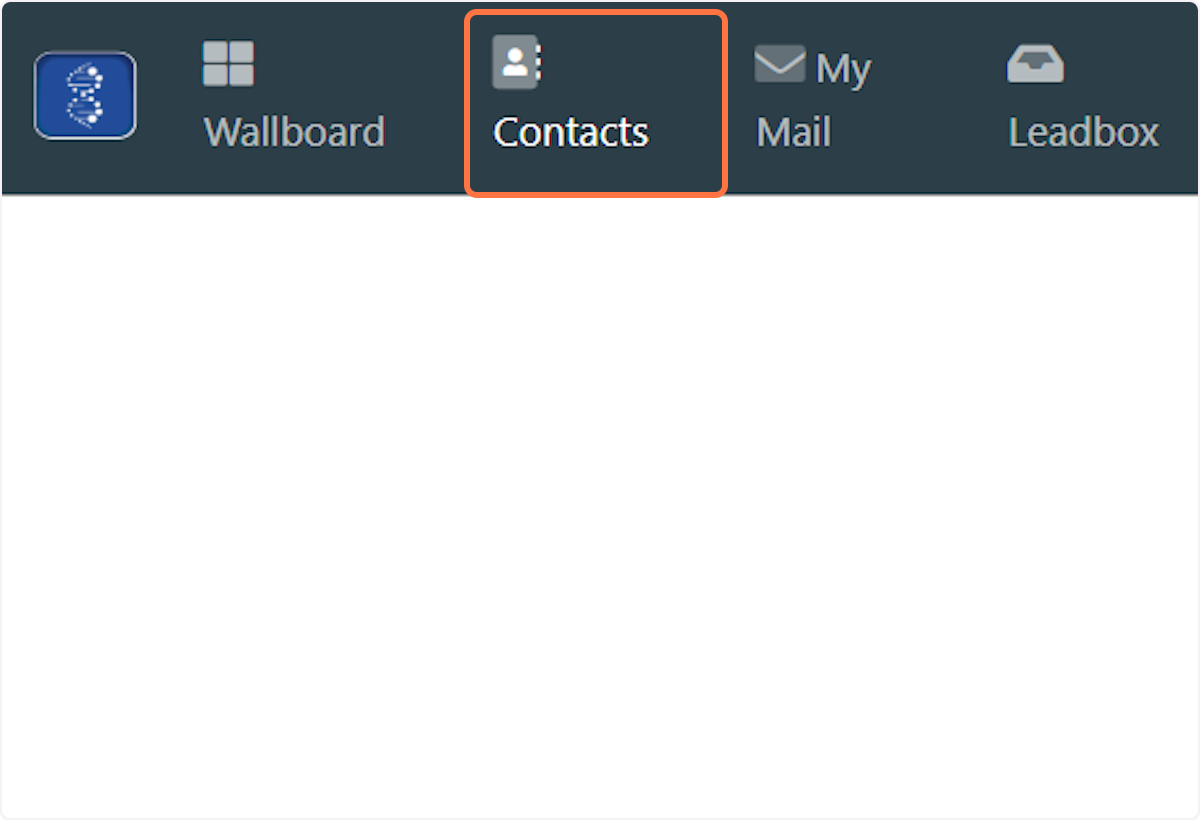
1. Click on Contacts
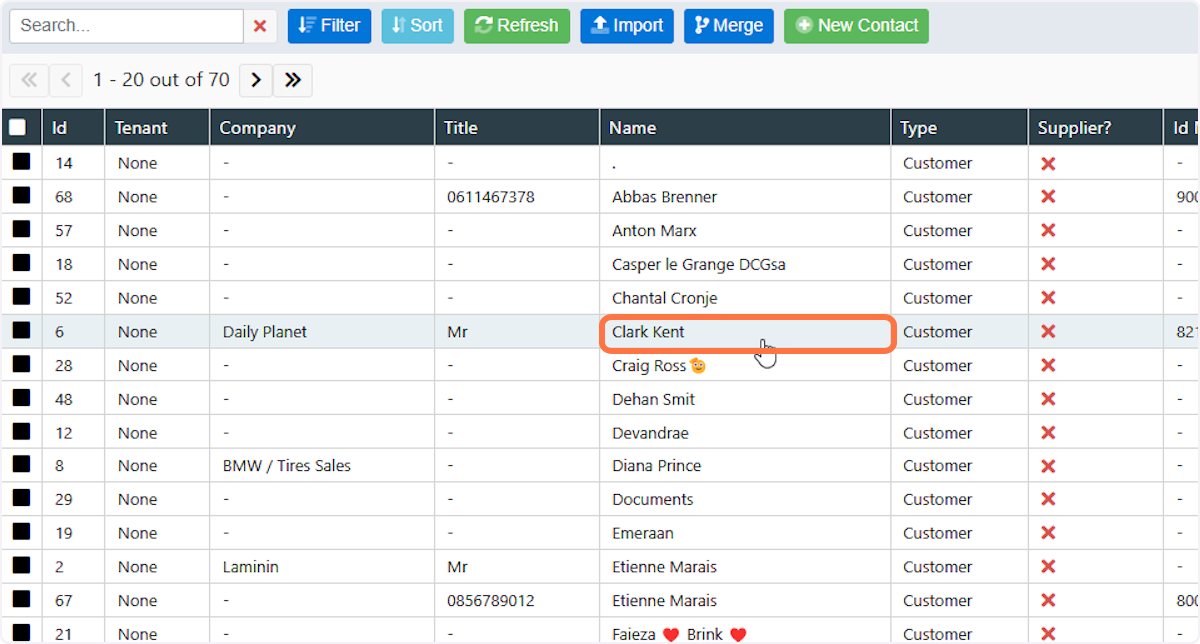
2. Click on the contact you want to phone
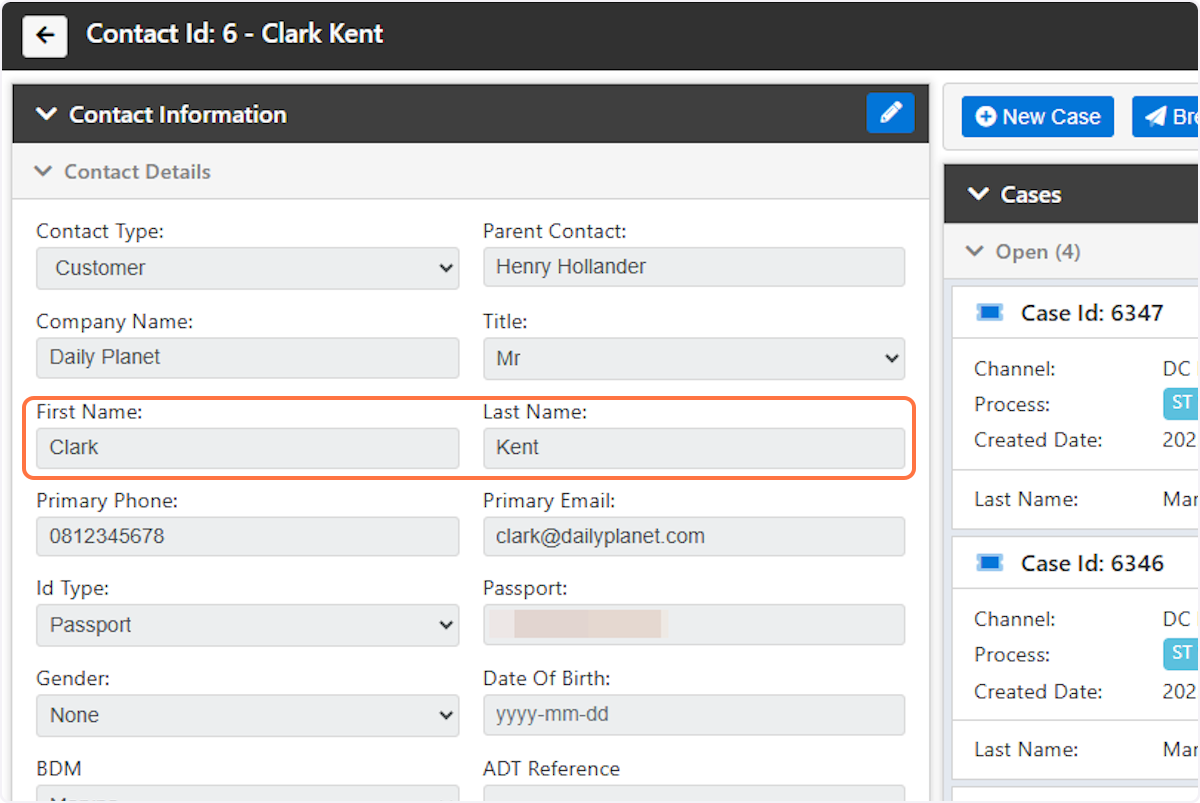
3. This will open the Contact View
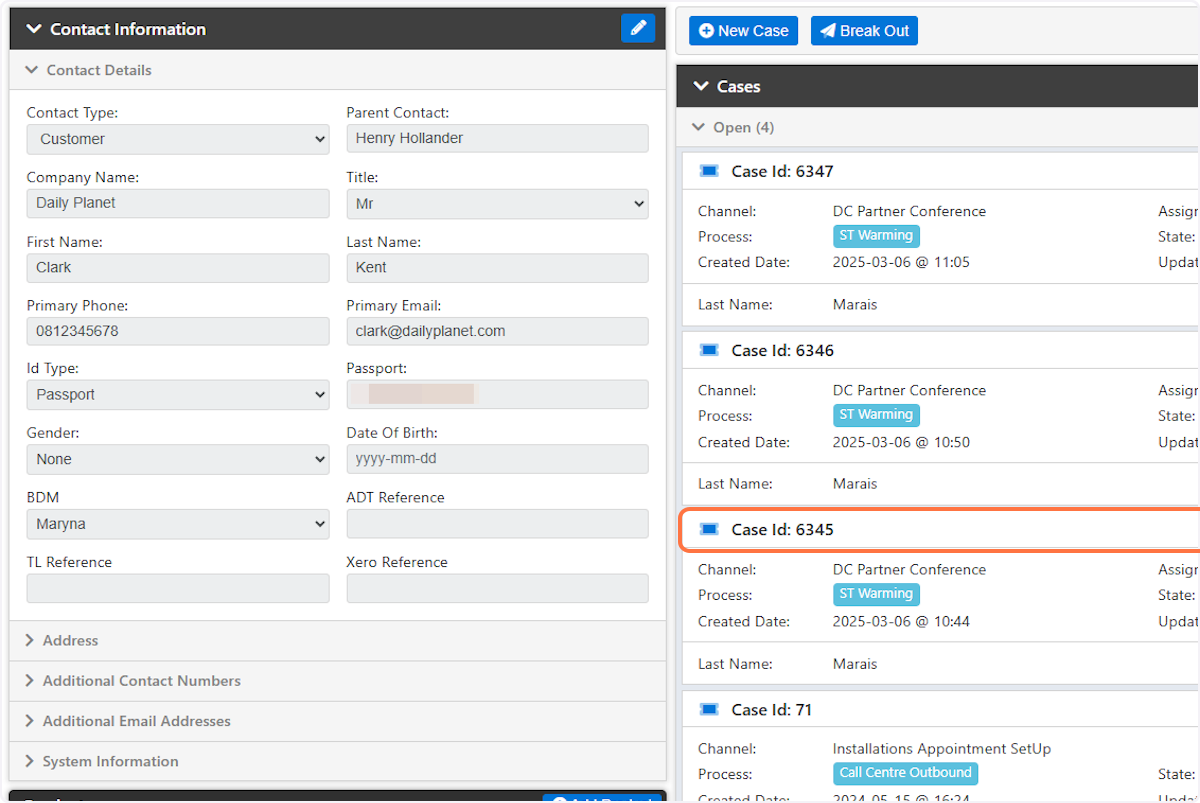
4. You can click on an existing Case if you want to contact the customer about this specific Case. Alternatively you can create a new Case.
Note: Case could be called a Ticket or Lead depending on your environment
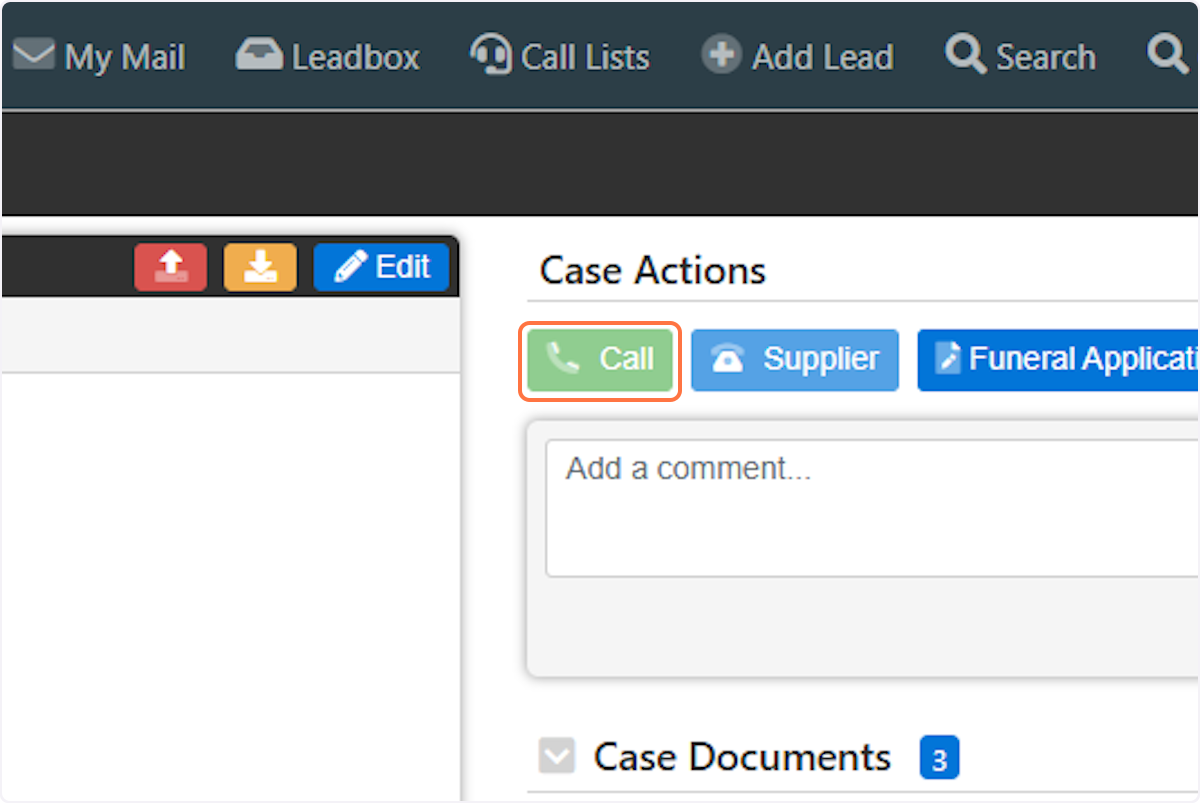
5. This will open the Case. Click on the Call button to initiate the call.
Note: Case could be called a Ticket or Lead depending on your environment
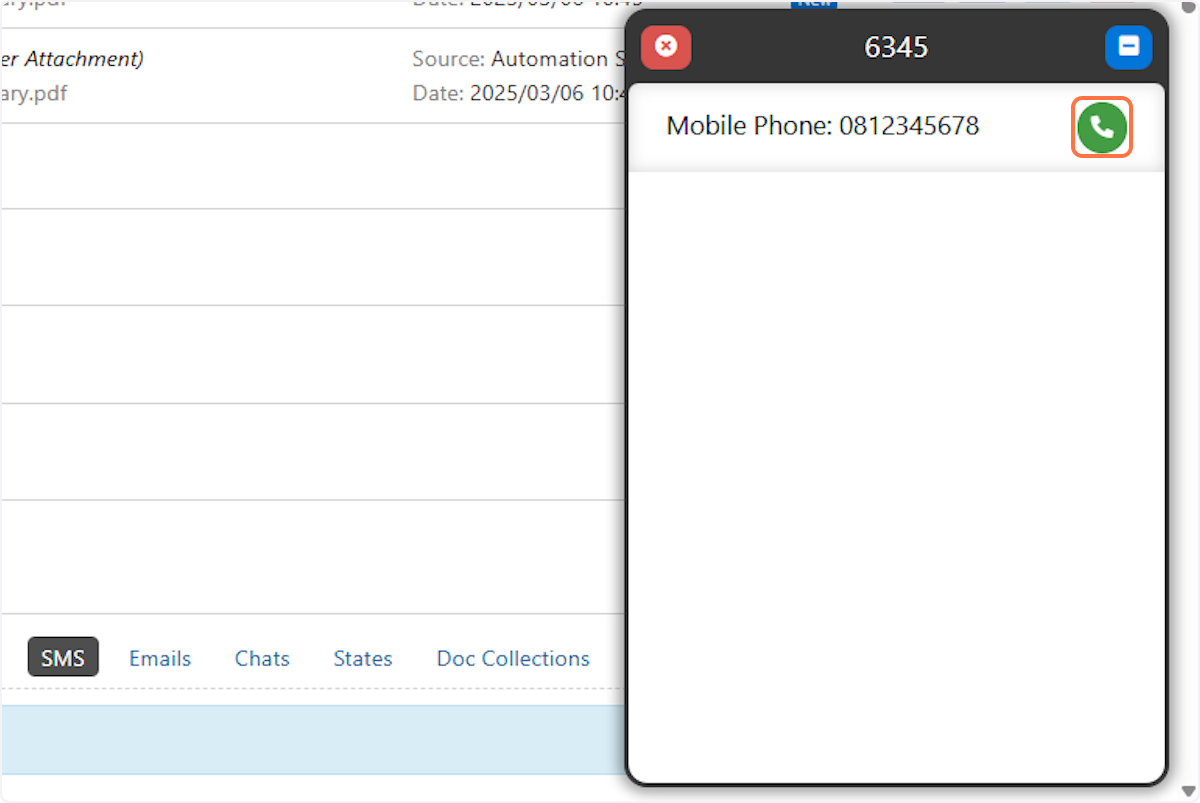
6. This will open up the phone interface in the bottom right corner. Click on the green call button to start the call.
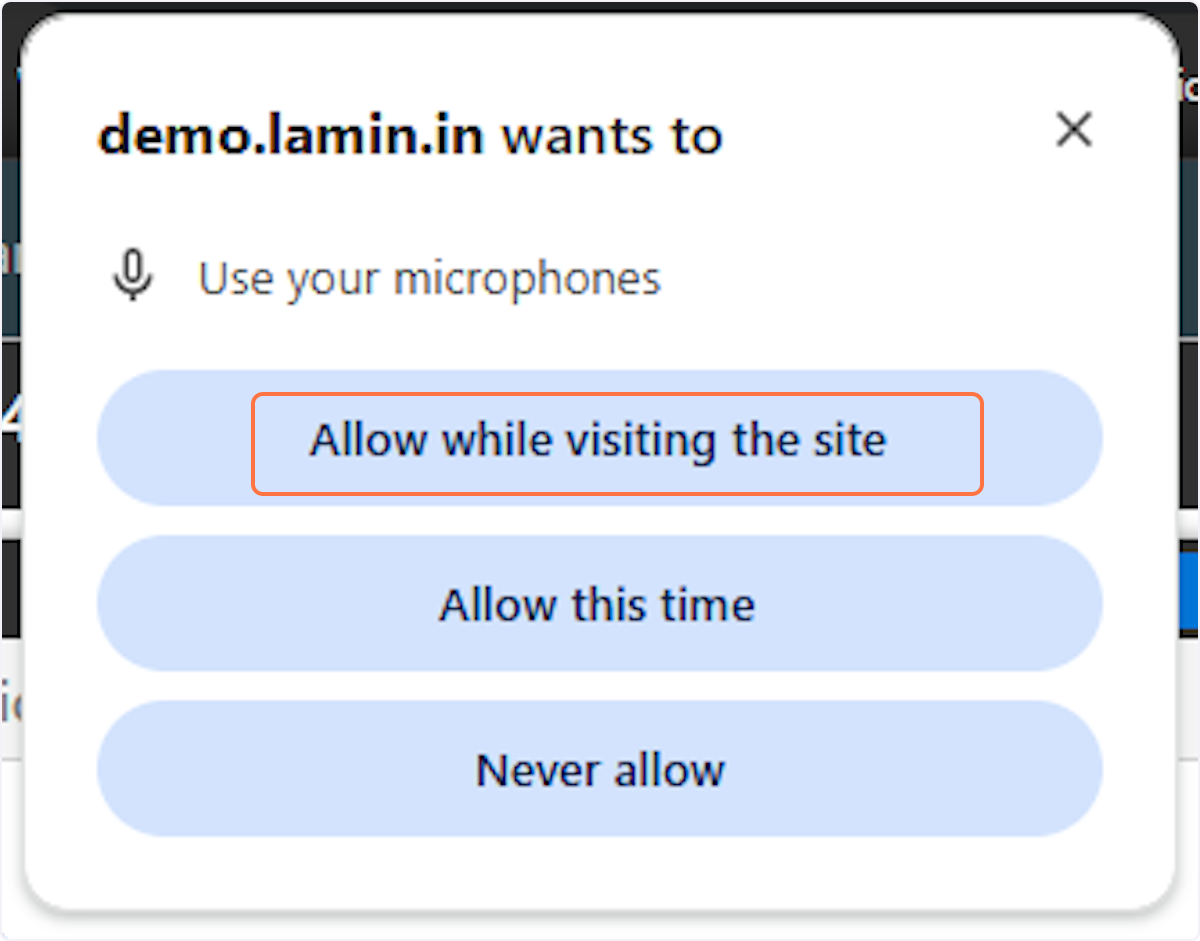
7. The first time a call is made you will need to allow Laminin access to use your microphone. Click on "Allow while visiting the site".
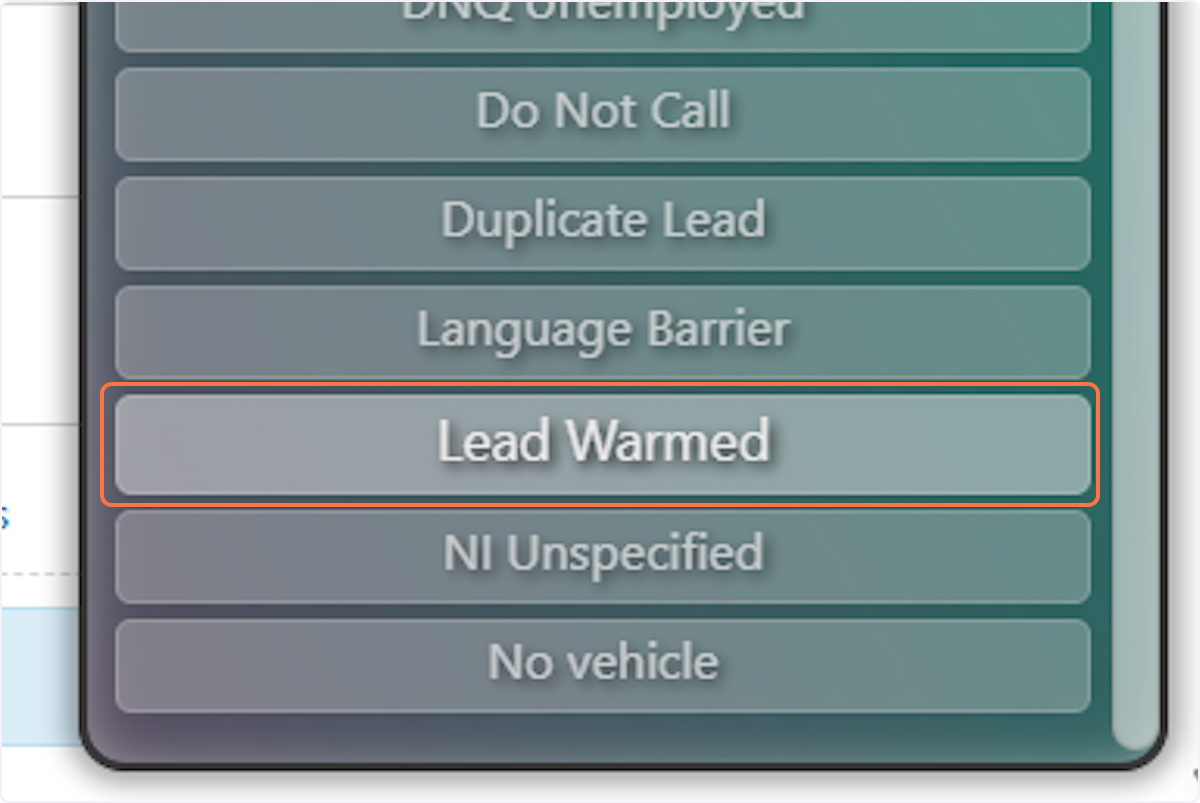
8. Once the call is complete select the appropriate Call Disposition
The Call Disposition varies based on the workflow the lead is currently in
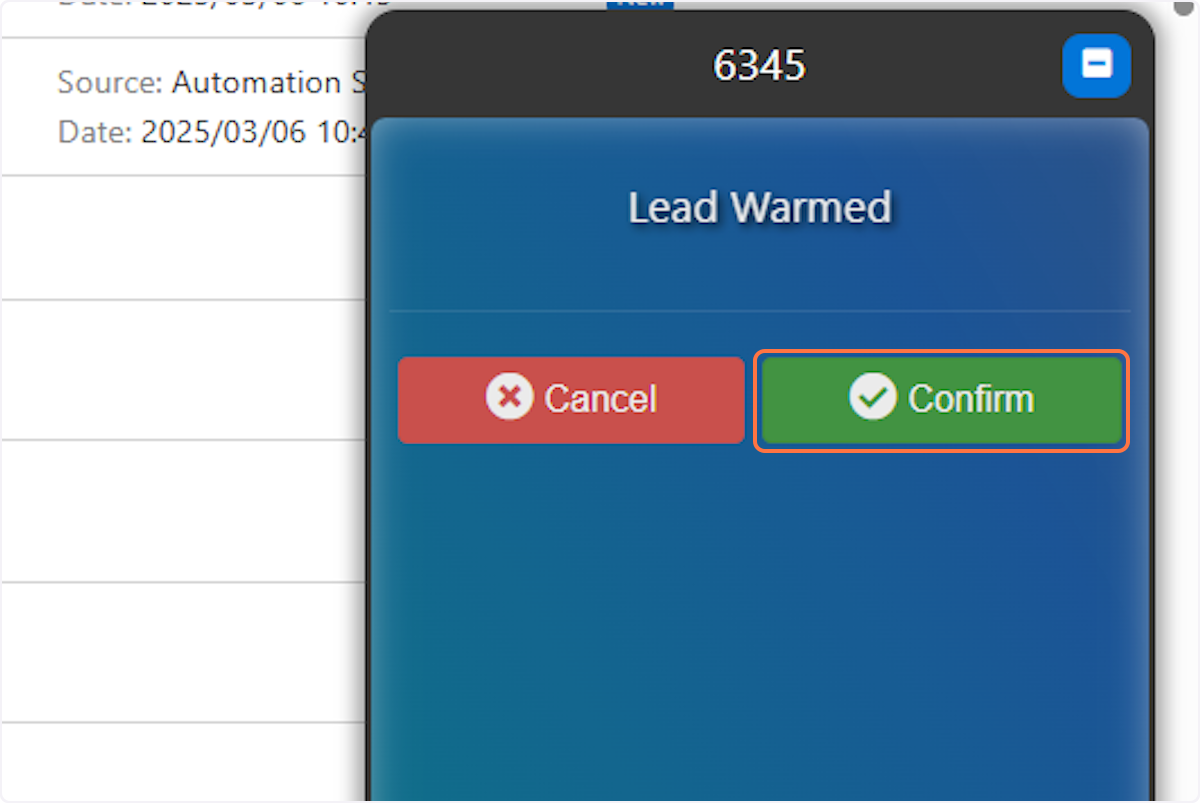
9. Click on Confirm
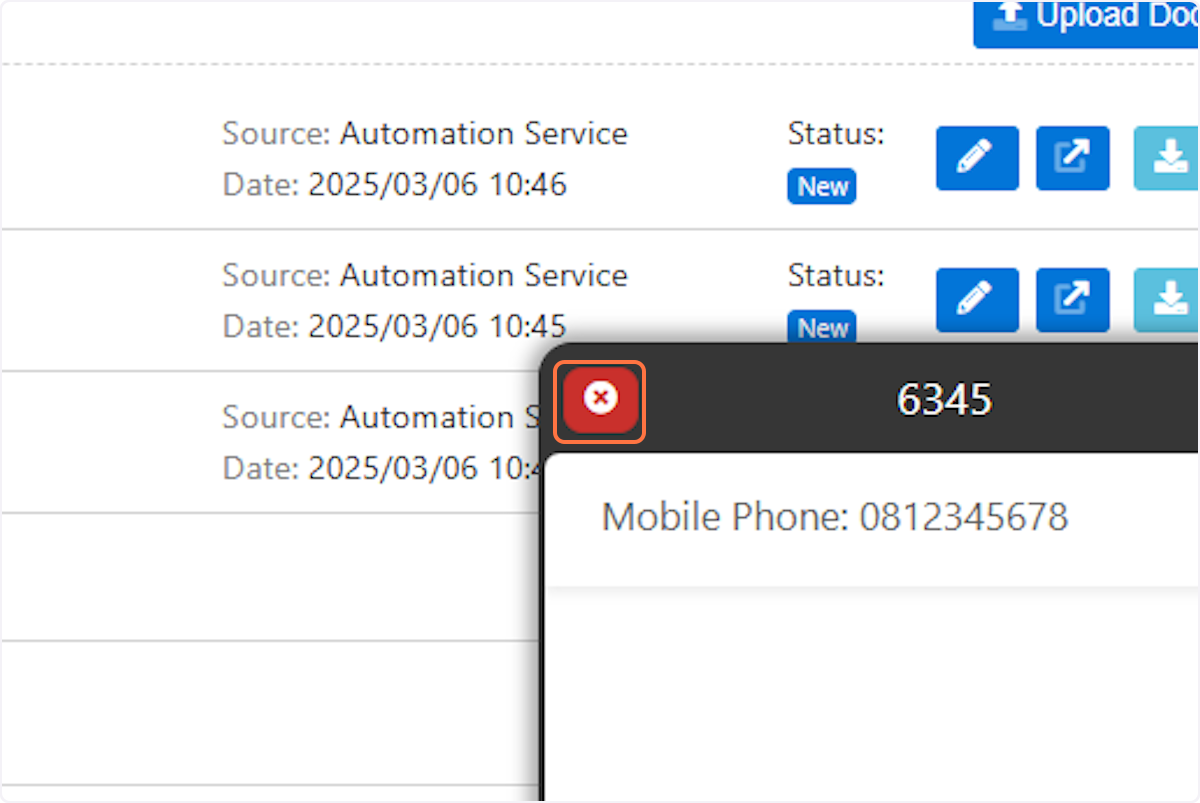
10. You can close the phone by clicking on the red close button at the top left of the phone interface
For any questions or additional support, please mail our team at support@lamin.in
When logging a ticket with the Laminin support team, please provide as much information as possible. This can include references to specific leads or recordings as well as descriptions and screenshots of your own troubleshooting.
Was this article helpful?
That’s Great!
Thank you for your feedback
Sorry! We couldn't be helpful
Thank you for your feedback
Feedback sent
We appreciate your effort and will try to fix the article